Tag: the bot labels a customer for segmentation
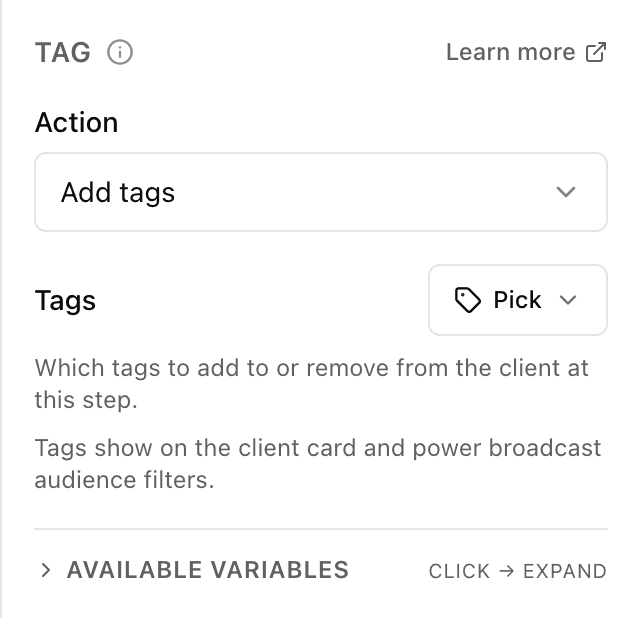
What the "Tag" block does
A tag is a label that sticks to a customer: "bought", "interested in delivery", "VIP". The block adds the tags you choose, or removes them, automatically when the customer reaches this step in the flow. The customer sees nothing — tags are for you, to split the audience into groups and send each group its own message.
Block settings
The block's settings panel — what to fill in:
- Action
- What to do with the customer's tags: add them or remove them. Add by default.
- Tags
- Pick tags from the shared catalog — the button opens a window with a searchable list. You can choose up to 10 tags per block; the chosen ones show as chips, and an extra one can be removed with a cross. If a tag was deleted from the CRM after setup, a "Tag deleted" note appears in its place. The picker button is shown only if you have permission to view tags.
Example: mark "bought"
The customer pays for an order and the "Tag" block with the "add" action gives them the "bought" tag. Later you gather everyone with the "bought" tag in one filter and send them a mailing about new arrivals, leaving out those who haven't bought yet.
Frequently asked questions
What are tags for and how do I use them later?
Tags split customers into groups: "bought", "interested in delivery", "attended the webinar". You build an audience segment from them and send a targeted mailing — only to the right people, not everyone.
Why is the tag picker button not showing in the block?
Choosing tags is available only to those with permission to view tags. If the button is missing, ask an administrator to grant you access to tags — then the catalog appears.
How is a tag different from a variable?
A tag is a shared label on a customer for splitting the audience into groups (handy for building a mailing). A variable stores one person's specific value — their name or order total, say. Tags answer "which group is the customer in", variables answer "what do we know about them".
Other blocks in this group
Ask
The bot asks a question and remembers what the person answers. For example, it asks for a name or a delivery address.Phone / location
With one button the bot asks for a phone number or location. For example, a number for the courier to call or a delivery point on the map.Save value
Saves a value to use later. For example, store the chosen city and then insert it into messages.Calculator
Calculates using a formula and remembers the result. For example, work out the discounted order total or the delivery cost.List (cart)
Collects chosen items into a cart list: add, remove or clear. For example, the customer picks products with buttons and the bot shows the cart and total.Survey
Asks the customer for a rating and, if needed, a comment. For example, rate the service from 1 to 5 after an order.Launch your Telegram bot with Forgebot
Build your first flow, reply to subscribers and watch analytics — free, no code.
Free plan: 1 bot, 5 flows, 100 subscribers. No card required.