Survey: the bot collects a customer rating and feedback
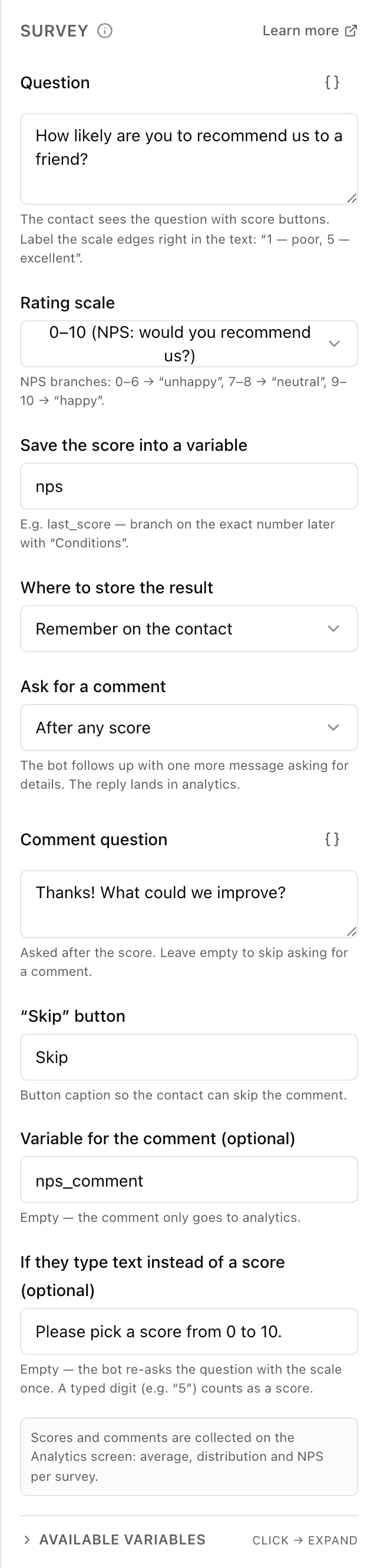
What the "Survey" block does
The block sends the customer a question with ready rating buttons — you don't have to build them yourself. The customer taps a number and the bot saves it to a variable. If you like, the bot then asks for a few words on why. The flow branches from there: thank the happy ones, hand the unhappy ones to an operator.
Block settings
The block's settings panel — what to fill in:
- Question
- The text the bot sends with the rating buttons — for example "Please rate our service". Up to 2048 characters; you can insert a placeholder such as the customer's name.
- Scale
- Which buttons to show: five (a rating from 1 to 5) or eleven (from 0 to 10). 1 to 5 by default. The choice also sets which branches the flow follows next.
- Variable
- The name of the cell where the rating is saved for later use — for example last_score. Written in Latin letters.
- Where to store the result
- Keep the rating with the customer permanently, or only for the current run of the flow. Kept with the customer by default.
- Ask for a comment
- Whether to ask for a few words after the rating: never, always, or only for a low rating. Never by default. The choice reveals the fields below.
- Comment prompt text
- What the bot writes when it asks for a comment — for example "Tell us what we can improve". Up to 2048 characters. Shown only when a comment is requested.
- "Skip" button
- The label on the button the customer taps to decline writing a comment. Up to 64 characters, "Skip" by default. Shown only when a comment is requested.
- Comment variable
- The name of the cell where the comment text is saved — for example score_comment. Written in Latin letters. Shown only when a comment is requested.
- Message if they reply with text
- What the bot replies if the customer types words instead of tapping a rating button — a polite nudge to use the buttons. Up to 2048 characters.
Example: rating the service
After an order the bot sends "Rate our service from 1 to 5". The customer taps 5 — the bot says thanks; taps 2 — it asks "What went wrong?" and hands the chat to an operator. The rating is saved to last_score for reporting.
Frequently asked questions
Can I use a 0–10 scale instead of 1–5?
Yes — in the "Scale" field choose the 0 to 10 option and the bot shows eleven buttons instead of five. The chosen scale also drives the branches the flow follows next.
What happens if the customer types text instead of tapping a button?
The bot sends the ready message from the "Message if they reply with text" field and shows the rating buttons again. That keeps the survey on track if the person starts typing an answer in words.
How is "Survey" different from a plain question with buttons?
In "Survey" the rating buttons and the branching by rating are ready-made — no need to build buttons and conditions by hand. You can also ask for a comment right away and save both the rating and the text to variables.
Other blocks in this group
Ask
The bot asks a question and remembers what the person answers. For example, it asks for a name or a delivery address.Phone / location
With one button the bot asks for a phone number or location. For example, a number for the courier to call or a delivery point on the map.Save value
Saves a value to use later. For example, store the chosen city and then insert it into messages.Calculator
Calculates using a formula and remembers the result. For example, work out the discounted order total or the delivery cost.List (cart)
Collects chosen items into a cart list: add, remove or clear. For example, the customer picks products with buttons and the bot shows the cart and total.Tag
Adds or removes labels on the customer. For example, mark bought or interested in delivery, then use labels to build a mailing.Launch your Telegram bot with Forgebot
Build your first flow, reply to subscribers and watch analytics — free, no code.
Free plan: 1 bot, 5 flows, 100 subscribers. No card required.