List (cart): the bot collects the customer's picks into one list
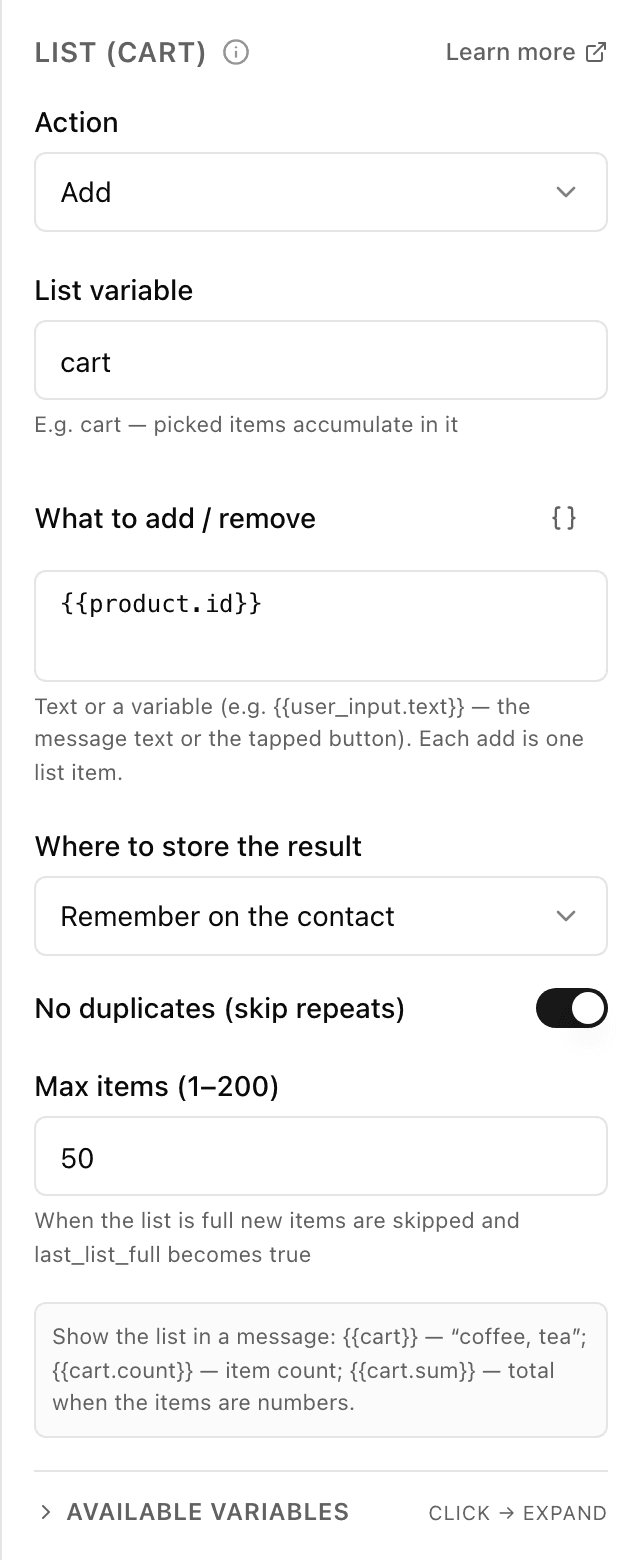
What the "List (cart)" block does
An ordinary variable holds one value and is overwritten by the next. A list gathers them one after another — like a cart the customer fills with buttons. At each step you choose what to do: add an item, remove it, or empty the list entirely. The customer just taps buttons while the bot keeps the set with them and can show it in the next message.
Block settings
The block's settings panel — what to fill in:
- Action
- What to do with the list: put an item in (add), remove one, or clear it completely. "Add" by default. For the "remove" action the bot deletes all matching items at once.
- List variable
- The name of the "cart" the chosen items are collected into — for example cart. Written in Latin letters, digits and _, and not starting with a digit.
- What to add / remove
- What exactly to put into the list or take out — plain text or a placeholder like the customer's reply {{user_input.text}}. Each addition is one item in the list. Up to 1024 characters. Hidden for the "clear" action.
- Where to store the result
- Remember the list for the customer permanently (it survives across chats) or only for the current run of the flow. Kept with the customer by default.
- No duplicates (don't add twice)
- Don't put the same thing in twice — a repeat pick is simply ignored. Off by default. Available only for the "add" action.
- Maximum items (1–200)
- How many items the list can hold at most — from 1 to 200, 50 by default. When the list is full nothing new is added, and the variable last_list_full becomes true. Available only for the "add" action.
Example: a coffee-shop cart
The customer taps "cappuccino", "croissant" and "éclair", and the "List" block with the "add" action collects them into the cart variable. A "Remove" button deletes an item, "Checkout" leads on, and in the next message the bot shows the assembled cart.
Frequently asked questions
What happens when the list is full?
When the list already holds the maximum number of items (50 by default, up to 200), a new item is not added and the variable last_list_full becomes true. You can use it to show a "cart is full" message and move the customer to checkout.
How do I remove one item from the cart?
Add a "List" block with the "remove" action and the same item — the bot deletes all matching items from the list at once. To empty the whole cart, choose the "clear" action.
How is "List" different from an ordinary variable?
An ordinary variable holds one value and is replaced by the next. "List" gathers values one after another, like a cart: you can add and remove items as the chat goes and show the whole set at the end.
Other blocks in this group
Ask
The bot asks a question and remembers what the person answers. For example, it asks for a name or a delivery address.Phone / location
With one button the bot asks for a phone number or location. For example, a number for the courier to call or a delivery point on the map.Save value
Saves a value to use later. For example, store the chosen city and then insert it into messages.Calculator
Calculates using a formula and remembers the result. For example, work out the discounted order total or the delivery cost.Survey
Asks the customer for a rating and, if needed, a comment. For example, rate the service from 1 to 5 after an order.Tag
Adds or removes labels on the customer. For example, mark bought or interested in delivery, then use labels to build a mailing.Launch your Telegram bot with Forgebot
Build your first flow, reply to subscribers and watch analytics — free, no code.
Free plan: 1 bot, 5 flows, 100 subscribers. No card required.