API request: the bot pulls data from your site or CRM via API
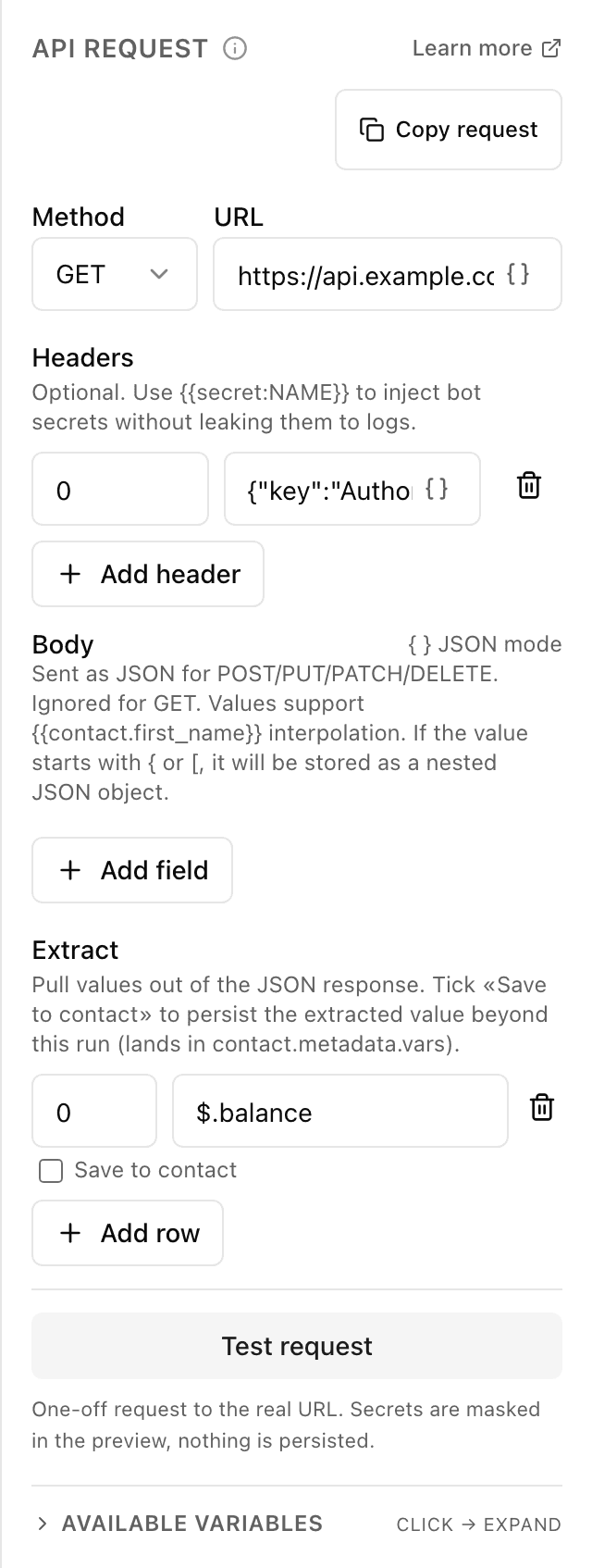
What the "API request" block does
The block reaches out to your system — a site, warehouse, CRM — right in the middle of the flow and gets data back. For example, it checks whether an item is in stock, or creates an order. The customer doesn't see this: they only notice the result — the next message the bot builds from the data it got.
Block settings
The block's settings panel — what to fill in:
- Method
- What to do with the service: get data (GET) or send and change it (POST, PUT, PATCH, DELETE). Picked from a list.
- URL
- The address of your service the bot calls. You can insert variables — for example {{contact.id}} right in the address.
- Headers
- Extra notes attached to the request — most often an access key. Optional. A secret isn't written here directly: you put a reference {{secret:NAME}} instead, while the secret itself is stored separately in the bot settings and never reaches the logs.
- Body
- The data the bot sends to the service (for POST, PUT, PATCH, DELETE; not used for GET). Filled in as "field — value" pairs or as whole JSON. Values support variables, e.g. {{contact.first_name}}.
- Extract
- What to take from the response and which variable to put it in: a variable name plus the path to the value in the response (e.g. $.data.payment_link). The "Save to contact" checkbox keeps the value beyond this run.
Example: a stock check
A customer asks about availability. The "API request" block sends a GET to your warehouse at an address with {{product_id}}, pulls the stock count from the response into a variable stock, and the next step tells the customer whether the item is in stock.
Frequently asked questions
Won't my keys and passwords leak?
No. A secret (a token, a password) isn't stored in the flow itself — you keep it separately in the bot settings and only reference it by name in the request: {{secret:NAME}}. When sending, the bot substitutes the real value, but only the reference stays in the flow and the logs, never the secret itself.
How do I check the request is set up right?
The block has a "Test" button — it sends your current request for real and shows the service's response, so you see the result before running the flow. To avoid overloading the service, the button locks for a few seconds between tests.
What do I do with the data from the response?
You save it into variables in the "Extract" section, then use it in the flow as usual — insert it into a message via {{...}}, check it in a condition, or send it in another request. A value with "Save to contact" ticked stays with the customer beyond this run.
Other blocks in this group
Payment
The bot issues an invoice to pay right in the chat. For example, paying for an order by card or with Telegram Stars.To team chat
The bot sends a message to your team chat or channel. For example, to notify staff about a new request.AI assistant
The AI answers the customer in its own words, following your instructions and knowledge base. For example, a coffee shop assistant recommends a drink and answers menu questions.Wait for data
Waits until an external service sends an event to a data receiver. For example, wait for an invoice payment and grant access.Launch your Telegram bot with Forgebot
Build your first flow, reply to subscribers and watch analytics — free, no code.
Free plan: 1 bot, 5 flows, 100 subscribers. No card required.