Buttons: the customer chooses with a single tap
What the "Buttons" block does
The block sends the customer a message with buttons underneath. The customer taps one, and the flow continues down that button's branch. You set each button's label, its order and, if you like, its colour; you can also attach an image to the message. It's the simplest way to guide the customer through a flow without free-form input.
Block settings
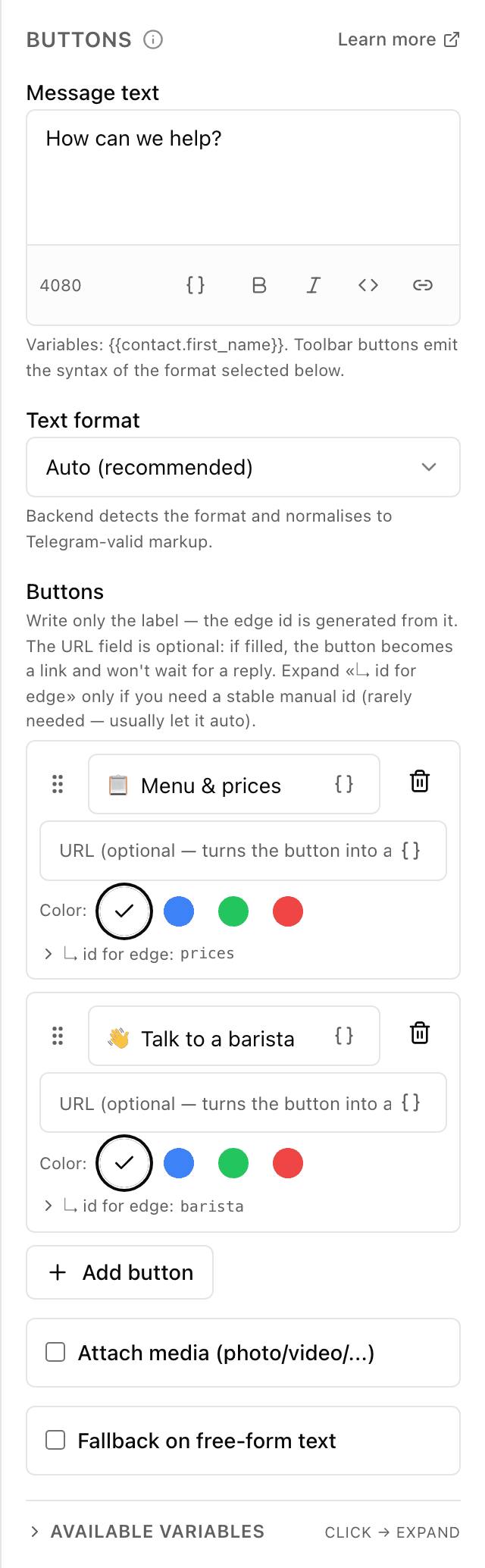
The block's settings panel — what to fill in:
- Message text
- The text above the buttons — a question or prompt, for example "What are you after?". You can format it and insert variables like the customer's name. Up to 4096 characters.
- Text format
- How the bot reads the markup in your text: "Auto" (recommended), HTML, Markdown, MarkdownV2 or "No formatting". Same as in the "Message" block.
- Buttons
- The button list itself. Each has a label the customer sees and an optional colour: default, blue, green or red. Add a link (URL) to a button and it becomes a link button that won't wait for a reply. You can drag buttons to reorder them.
- Attach media
- Optional: a checkbox to attach a photo, video or file to the message by link. The link must be https, and the server checks it for safety.
- Reminder on free-form text
- Optional: if the customer types text instead of tapping a button, the bot replies with a reminder prompt. You can set its text and how many times to repeat — from 1 to 5. Once the reminders run out, the bot stops writing and simply waits for a tap: the buttons under the message keep working, and the bot never picks one for the customer.
Example: a coffee-shop main menu
After the greeting, the "Buttons" block shows "How can I help?" and three buttons — "Menu", "Opening hours" and "Call a manager". The customer taps "Menu", and the flow goes down that button's branch — showing photos and prices.
Frequently asked questions
What happens if the customer types text instead of tapping a button?
By default the bot waits for a tap and asks once to tap one of the buttons. You can switch on "Reminder on free-form text" — then, in response to typed text, the bot politely repeats your prompt from 1 to 5 times, then goes quiet and waits for a tap. The bot never picks a button for the customer: the conversation follows the branch of the button the customer taps.
Why give a button a link (URL)?
If you set a link on a button, it turns into a link button: tapping it opens a website, and the bot doesn't wait for a reply. Without a link, the button leads the customer further through the flow inside the bot. Handy for a website, a map or a channel.
How are "Buttons" different from the "Message" block?
"Message" simply sends text and moves on. "Buttons" shows text with choice options and waits for the customer to tap one — then leads the conversation down that button's branch. Use "Buttons" when you want to offer ready-made options.
Other blocks in this group
Message
The bot sends a text message. For example: Hi! How can we help?Media
The bot sends a photo, video, GIF, audio or document with a caption. For example, a photo of the menu or a price list in PDF.Delete message
Deletes the last message from the bot to keep the chat tidy. For example, remove the button menu after the customer has chosen.Launch your Telegram bot with Forgebot
Build your first flow, reply to subscribers and watch analytics — free, no code.
Free plan: 1 bot, 5 flows, 100 subscribers. No card required.