Conditions: the flow follows the matching branch
What the "Conditions" block does
The block holds a list of rules, and you decide how they work together. In "first match" mode the bot checks the rules in order and takes the customer down the first one that fits — each rule has its own branch. In "all conditions" mode every rule must hold at once: then the customer follows the "yes" branch, otherwise "no". The customer never sees the check and gets the message on the branch they were sent to.
Block settings
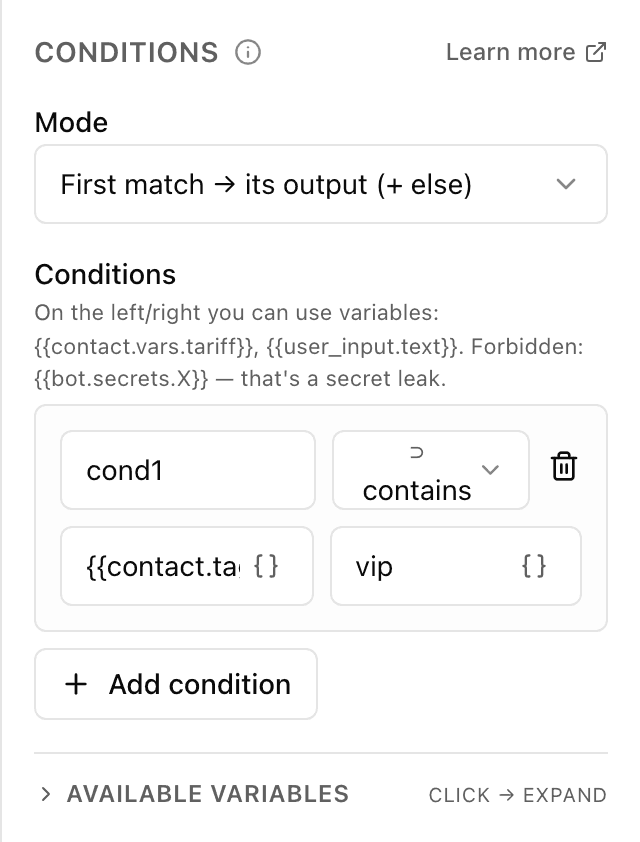
The block's settings panel — what to fill in:
- Mode
- How the rules work together. "First match" — the bot takes the first rule that fits and follows its branch, and if none fit, it takes the "else" branch. "All conditions" — every rule must match at once: then the "yes" output, otherwise "no".
- Conditions (rule list)
- Each row is one rule. A row has a short name (id) that wires its branch to the next step on the canvas — for example tariff_pro. A row with no name won't be saved.
- Comparison and values
- In each rule you pick a comparison (the same twelve options as in "Branch": equals, contains, greater than and so on) and enter what to check against what. On the left and right you can insert variables, for example {{contact.vars.tariff}}. The "is empty"/"is not empty" rules need no right-hand value.
- Add / remove condition
- "Add condition" appends a new row, the trash icon removes an extra one. You can set up as many rules as you need branches.
Example: split by plan
"First match" mode, three rules: {{contact.vars.tariff}} equals "start", "business" and "pro" — each with its own branch and message. A customer with no plan matches none of the rules and takes the "else" branch — say, an invitation to pick a plan.
Frequently asked questions
How is "Conditions" different from the "Branch" block?
"Branch" checks one rule and gives two branches — "yes" and "no". "Conditions" checks several rules at once and leads the customer down many branches. Two branches — use "Branch"; more — use "Conditions".
Which to choose: "first match" or "all conditions"?
"First match" — when branches differ and the customer should land in one of them (by plan, city, reply). "All conditions" — when everything must match at once (say, plan "pro" and city "Kyiv"), giving a single "yes" output, otherwise "no".
Where does the customer go if no condition matched?
In "first match" mode — down the fallback "else" branch: be sure to wire it to the next step, or the customer gets stuck. In "all conditions" mode — down the "no" branch.
Other blocks in this group
Branch
A fork on a single condition: yes or no. For example, if the order total is over 500, offer free delivery.A/B test
Randomly splits people into groups to compare options. For example, show half one greeting and half another, then see which works better.Subscription check
Checks whether the person is subscribed to your channel or group. For example, give a bonus only to subscribers.Launch your Telegram bot with Forgebot
Build your first flow, reply to subscribers and watch analytics — free, no code.
Free plan: 1 bot, 5 flows, 100 subscribers. No card required.